

Securing Mobile App Builds: Password Protection, Expiration, and Install Limits
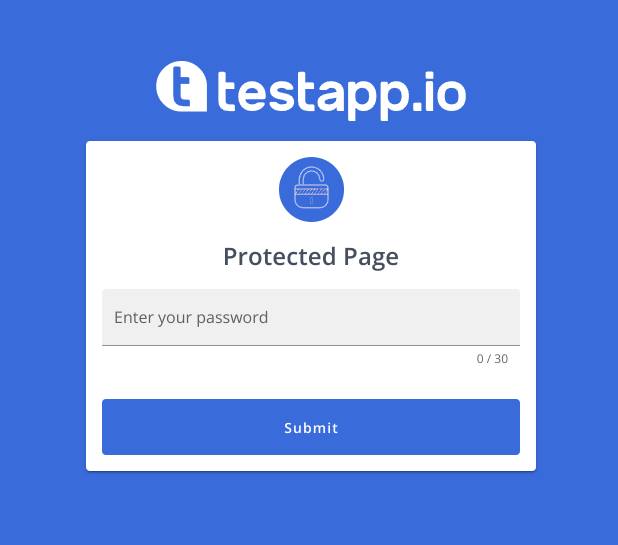
When you share a mobile build through a share link, the install page is unlisted, it won't appear in search results and only people with the exact URL can access it. But for confidential builds, NDA-protected projects, or client demos, you might want more than obscurity. You want a locked door.
That's where share link security settings come in.
Password Protection
When you create or edit a share link in the TestApp.io portal, Step 4 of the wizard lets you set a password. Anyone who opens the link will see a password prompt before the install page loads.
This is useful for:
- Client builds under NDA. Share the URL in an email, send the password in a separate message. Only the intended recipient can access the build.
- Contractor access. Give the freelance QA team a link and password. When the contract ends, change the password or disable the link.
- Trade show demos. Display a QR code at your booth but require a password so random attendees can't access unreleased features.
You can change the password at any time without recreating the link. You cannot retrieve a forgotten password, just set a new one.
Expiration Dates
Set a share link to expire after 1 to 30 days, or leave it with no expiration. Once the expiration date passes, the link returns an "Expired" message instead of the install page.
Time-limited links are natural for:
- Sprint demos. Share a build for review during a 2-week sprint. The link expires automatically after the sprint ends.
- Contract testing, A 30-day link that matches the engagement duration.
- Beta rounds. Set a 7-day window for each beta cycle so testers always install the right build.
Install Limits
Cap the total number of installs on a share link. Once the limit is reached, the link shows "Limit Reached" and stops serving builds.
Install limits help when you need to:
- Control distribution to a known group size (e.g., 25 client stakeholders)
- Prevent a link from spreading beyond the intended audience
- Monitor adoption. if 50 installs happen in an hour from a 10-person link, something leaked
Manual Link Controls
Beyond automatic expiration and limits, you can manually control each link's status:
- Active. Normal operation.
- Coming Soon, A placeholder page while the build isn't ready.
- Maintenance Mode. Temporarily pause installs during backend updates.
- Disabled. Shut down the link entirely.
This gives you instant control without deleting or recreating anything.
Combining Controls
You can stack all of these on a single link. A real-world example: a client demo link that is password-protected, expires in 14 days, and limited to 10 installs. This means:
- Only people with the password can see the install page
- The link automatically dies after 2 weeks
- No more than 10 devices can install the build
For the full share link setup guide, see Share Links in the help center.
For Your Internal Team
Share links are designed for external distribution. Your internal team has a different (and richer) workflow: they sign in to the TestApp.io mobile app (iOS / Android), receive push notifications for new builds, install with a single tap, manage tasks, and submit feedback with screenshots and videos. Both workflows. internal mobile app and external share links. feed into the same project.
Ship Mobile Apps Faster with TestApp.io
TestApp.io helps mobile teams distribute builds to testers, collect feedback, and manage releases, all in one place. Support for iOS (IPA) and Android (APK), with integrations for Slack, Microsoft Teams, Jira, Linear, and 10+ CI/CD platforms.
👉 Get started free, or explore the Help Center to learn more.